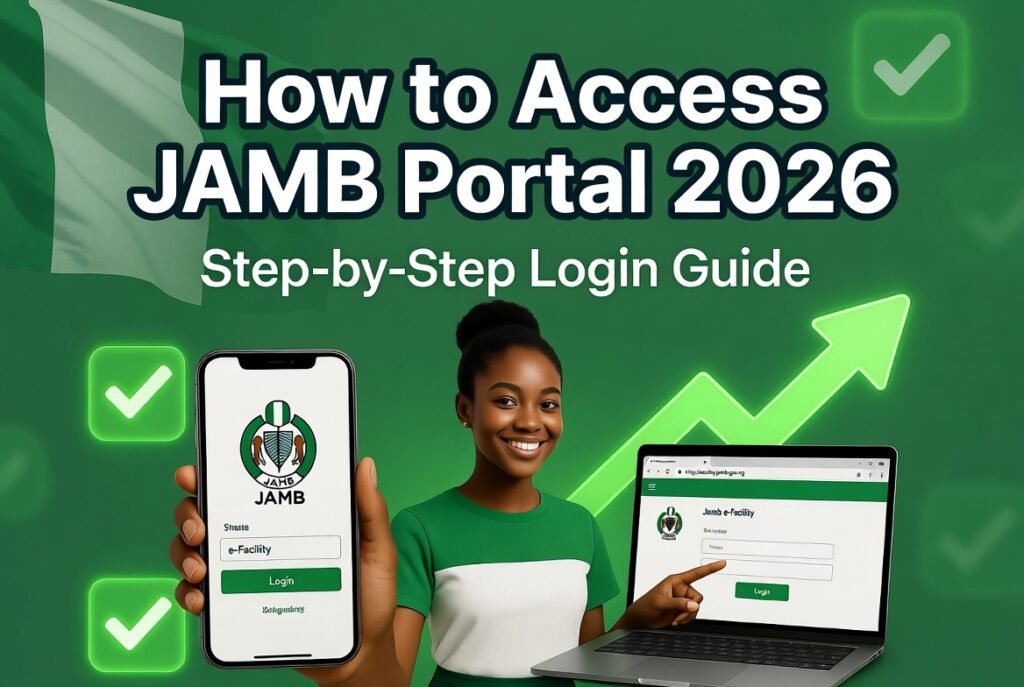
How to check school admission list on JAMB CAPS 2026 has become the most urgent question for thousands of UTME and Direct Entry candidates right now.
Instead of waiting anxiously for your school to publish a PDF list on their website, you can see your exact admission status directly inside JAMB’s Central Admissions Processing System (CAPS) — often before the school even uploads the batch list.
Advertisements
This method is faster, more reliable, and gives you real-time updates. In the 2026 admission cycle, many universities and polytechnics are releasing offers strictly through CAPS first, then later publishing supplementary lists. Checking directly on CAPS puts you ahead of the crowd and helps you act quickly on any offer.
Let’s go through the exact process that works today so you can stop refreshing school portals and start getting clear answers from the official system.
Why Checking School Admission List on JAMB CAPS Is Better Than School Websites in 2026
School websites often update late or show incomplete lists. CAPS, on the other hand, is the central system where universities actually send and manage offers. When you check here you get:
- Your personal admission status for every school you chose
- Early notification before the public list is released
- Direct option to accept or reject the offer
- Access to print your official admission letter once accepted
Many candidates in 2026 have already received their first-choice or supplementary admission through CAPS even when their school’s website still says “Admission List Not Yet Out.”
What You Need Before Checking School Admission List on JAMB CAPS
Make sure you have these ready:
- Your 10-digit JAMB registration number
- The email address and password for your JAMB e-Facility account
- A smartphone with internet or a laptop
- Stable data or Wi-Fi connection
If you have already checked your JAMB result or admission status before, the same login details will work here.
Step-by-Step: How to Check School Admission List on JAMB CAPS 2026 Using Your Phone
This is the quickest way most candidates are using right now:
Step 1: Open Your Mobile Browser Use Chrome on Android or Safari on iPhone. Switch to “Desktop site” for a cleaner layout (tap the three dots → Desktop site).
Step 2: Visit the Official Portal Type exactly: https://efacility.jamb.gov.ng/
Step 3: Log Into Your e-Facility Account Enter your registered email and password. Forgot your password? Use the “Forgot Password” link and reset it via your email.
Step 4: Navigate to Admission Status On the dashboard, click “Admission Status” or “Check Admission Status / CAPS”.
Step 5: View Your School Admission Details You will see a clear display showing:
- The institution that offered you admission
- The exact course offered
- Your current status (Admitted, Not Admitted, Admission in Progress, etc.)
- Option to accept or reject if admitted
Take multiple screenshots of the page for your records.
How to Check on Laptop for a Fuller View
If you have access to a computer, the process feels even smoother:
- Open Chrome or Firefox.
- Go to https://efacility.jamb.gov.ng/
- Log in with your details.
- Click on the “Admission Status” tab on the left menu.
- All your chosen schools and their corresponding status will be listed.
The desktop version often shows more detailed information at a glance.
Understanding What You See on the CAPS Admission List
Here’s what the different messages mean in 2026:
- Admitted — Your school has offered you a place. You can now accept it.
- Not Admitted — No offer from that particular school yet (you may still get supplementary).
- Admission Recommended — The school has recommended you; JAMB is reviewing.
- Admission in Progress — Processing is ongoing — check back regularly.
- No Admission Yet — Keep monitoring; new batches are released frequently.
If you chose multiple institutions, CAPS will show the status for each one separately.
What to Do Immediately After Seeing “Admitted” on CAPS
Don’t just celebrate — act fast:
- Click the “Accept” button for the offer (do this only if you really want the course).
- Confirm the acceptance and refresh the page to verify it shows “Admission Accepted”.
- Proceed to print your JAMB Admission Letter (small fee may apply).
- Check the school’s website or portal for further instructions on acceptance fee payment and screening.
Remember: Some offers have short acceptance windows, so confirm and accept as soon as possible.
Common Problems When Checking School Admission List on CAPS and Quick Fixes
Here are the issues candidates face most often:
Portal Not Loading or Slow Switch networks (Wi-Fi to mobile data). Try late night or early morning when traffic is lower.
“No Admission Found” Your result may not be fully synced yet. Wait 24–48 hours and check again.
Login Issues Reset your password or clear browser cache and cookies.
Status Not Updating Refresh the page multiple times or log out and log back in after 10–15 minutes.
Can’t See All Schools Make sure you are viewing the full CAPS dashboard, not just the result section.
Pro Tips for Monitoring School Admission List on JAMB CAPS in 2026
- Check at least twice a day — morning and evening.
- Set phone reminders or alarms for regular checks.
- Keep your O’level results uploaded and verified on the portal.
- If you’re on a supplementary list, check even more frequently.
- Save screenshots every time your status changes.
Candidates who stay consistent with checking often catch offers within hours of release.
Difference Between School Website List and JAMB CAPS
School websites usually publish batch lists days or weeks after offers are sent via CAPS. Checking on CAPS gives you the earliest and most accurate information. Many schools in 2026 now rely almost entirely on CAPS for first-round offers.
Safety Tips While Checking Your Admission on CAPS
- Always use the official https://efacility.jamb.gov.ng URL.
- Never share your login details with anyone promising to “check for you.”
- Avoid third-party apps or websites claiming to show admission lists faster.
- Log out after every session, especially on public devices.
Frequently Asked Questions About Checking School Admission List on JAMB CAPS 2026
Q: Can I check admission list without logging into CAPS? No. Personalised status is only available after logging into your e-Facility account.
Q: How often are new admission lists released on CAPS? In batches throughout the admission period. Some schools release multiple rounds.
Q: What if I’m not admitted on my first choice? You may still get an offer on your second choice or through supplementary lists.
Q: Is checking on CAPS free? Yes, viewing your admission status is completely free.
Q: Can I see admission lists for all my chosen schools at once? Yes — CAPS shows status for every institution you selected during registration.
People also read: How to Know If Admission Is Accepted on JAMB CAPS 2026: Step-by-Step Guide
How to check school admission list on JAMB CAPS 2026 is now easier and more direct than ever. Instead of waiting for school notice boards or delayed website updates, you can get real-time information straight from the official system.
Log in today, check your status, and take immediate action on any offer you see. Being proactive during this period can make the difference between getting admitted this year and having to try again next season.
Your future is literally one login away — go check your CAPS right now.
We are an independent educational resource and not affiliated with JAMB or any government institution. Always verify your admission status directly on the official JAMB e-Facility portal and contact your chosen institution for additional screening requirements.
Sources:
- Joint Admissions and Matriculation Board Official Website: https://www.jamb.gov.ng/
- JAMB e-Facility & CAPS Portal: https://efacility.jamb.gov.ng/
- Official CAPS guidelines for 2026 admissions