How to check JAMB admission status 2026 is the question on every admitted (and hopeful) candidate’s mind right now.
You’ve written UTME, seen your result, and now you want to know if any university has offered you admission through CAPS. The good news? You can check everything quickly from your phone without visiting any office.
Advertisements
Many candidates refresh the portal every hour hoping for that green “Admitted” notification. In the 2026 admission cycle, offers are coming out in batches, and checking regularly can mean the difference between securing your spot and missing the acceptance deadline.
Let’s walk through the exact process that works today so you can stop guessing and start acting.
Why Checking Your JAMB Admission Status Early in 2026 Is Critical
JAMB’s Central Admissions Processing System (CAPS) is where everything happens. Universities send offers here first, and you must accept or reject them within a short window — sometimes as little as 48 hours.
Checking your status lets you:
- See if you’ve been offered admission to your first choice, second choice, or supplementary list
- Accept the offer before it expires
- Print your official admission letter
- Move on to pay acceptance fees and complete registration
Waiting too long has caused many students to lose their spots in previous years. In 2026, with more institutions using CAPS actively, staying on top of your status is non-negotiable.
What You Need Before Checking JAMB Admission Status
Prepare these simple items:
- Your JAMB registration number
- The email and password for your e-Facility account
- A smartphone with internet or a laptop
- Stable data or Wi-Fi connection
If you’ve already checked your JAMB result on phone, you’re halfway there — the same login details work for admission status.
Step-by-Step Guide: How to Check JAMB Admission Status 2026 on Phone
This method works perfectly on both Android and iPhone in April 2026:
Step 1: Open Your Mobile Browser Launch Chrome (Android) or Safari (iPhone). For better layout, tap the three dots and select “Desktop site”.
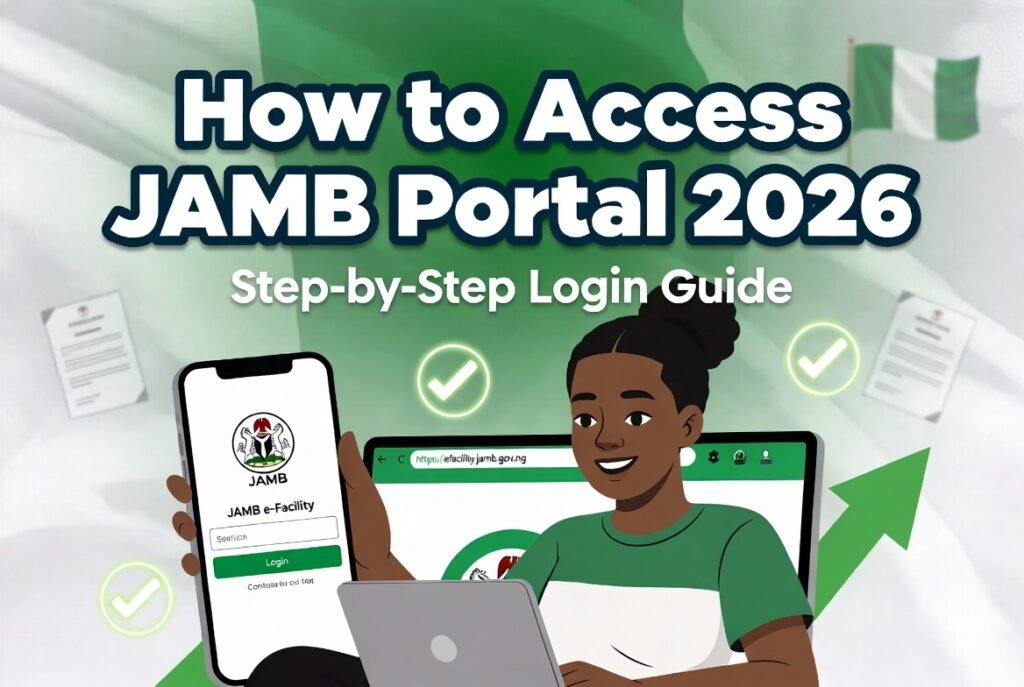
Step 2: Visit the Official Portal Go to https://efacility.jamb.gov.ng/
Step 3: Log In to Your Account Enter your registered email address and password. If you forgot the password, use the “Forgot Password?” link and reset it via email.
Step 4: Access CAPS Once logged in, click on “Admission Status” or “Check Admission Status” from the dashboard menu.
Step 5: View Your Current Status You will see one of these clear messages:
- Admitted: Congratulations! You can proceed to accept the offer.
- Not Admitted: You may still be considered in later lists.
- Admission in Progress: The school is still processing.
- No Admission Yet: Keep checking regularly.
Take a screenshot immediately for your records.
How to Check JAMB Admission Status on Laptop (Desktop Method)
The process is almost identical but often feels smoother on a bigger screen:
- Open Chrome or Firefox on your computer.
- Type https://efacility.jamb.gov.ng/
- Log in with your email and password.
- Click “Admission Status” on the left menu or main dashboard.
- Your CAPS profile will load showing the institution, course, and status.
Many students prefer the laptop for printing documents later.
What Each Admission Status Message Really Means in 2026
Understanding the exact wording helps you act fast:
- “Admitted” — You have an official offer. Log in quickly to accept it. After acceptance, you can print your admission letter (small fee may apply).
- “Not Admitted” — This doesn’t mean the end. Many candidates get offers in supplementary or second-choice lists.
- “Admission Recommended” — The school has recommended you; JAMB is still reviewing.
- “Awaiting Admission” — Keep checking — offers can appear suddenly.
In 2026, some universities are releasing multiple batches, so a “Not Admitted” today can turn into “Admitted” next week.
How to Accept or Reject an Admission Offer on CAPS
If you see “Admitted”:
- Click the “Accept” button for the offer.
- Confirm your decision carefully — once accepted, changing it is difficult.
- After acceptance, proceed to print your JAMB admission letter.
- Contact the school for further registration steps.
Only accept if you’re genuinely interested in the course and institution. Rejecting politely keeps other options open.
Common Problems When Checking Admission Status and Quick Fixes
Here are the issues candidates face most often and how to solve them fast:
Portal Not Loading Switch between mobile data and Wi-Fi. Try incognito mode or clear browser cache.
“Invalid Login” Error Reset your password using the forgot password link. Ensure caps lock is off.
Status Shows “No Record Found” Your result might not be fully uploaded yet. Wait 24–48 hours and try again.
Slow or Stuck Loading Avoid checking during peak evening hours (7 pm – 10 pm). Late night or early morning is usually faster.
Can’t See CAPS Option Make sure you’re fully logged into the e-Facility portal, not just the result checking page.
Pro Tips for Checking JAMB Admission Status Effectively in 2026
- Set two daily reminders on your phone: morning and evening.
- Check from different networks if one is slow.
- Screenshot every status change for your records.
- Keep your O’level results uploaded and up-to-date on the portal.
- If you’re on supplementary list, check even more frequently.
Students who check consistently often catch offers within hours of release.
What to Do After You See “Admitted”
Don’t celebrate and forget the next steps:
- Accept the offer immediately.
- Pay any required acceptance fee to the school.
- Print your JAMB admission letter from the portal.
- Prepare for physical screening at the institution.
- Monitor your email and phone for school communications.
If you get admitted to a less preferred school, you can sometimes apply for change of institution while keeping the offer.
Safety and Scam Warnings
Never pay anyone online who claims they can “push” your admission or check status for you. All legitimate checking is done only through the official JAMB portal. Scams peak during admission periods — stick to jamb.gov.ng and accredited CBT centres.
Frequently Asked Questions About Checking JAMB Admission Status 2026
Q: How often should I check my admission status? At least twice daily during peak admission weeks.
Q: Can I check admission status without logging in? No. You need your e-Facility account to access CAPS.
Q: What if I’m not admitted after several weeks? Consider buying the change of institution form or waiting for supplementary lists.
Q: Is checking admission status free? Yes, viewing your status is completely free. Printing documents may have small official fees.
Q: Can I use any phone to check? Yes — any smartphone with internet works. The site is mobile-friendly.
People also read: How to Check JAMB Result Using Phone 2026: Simple Step-by-Step Guide for Any Smartphone
How to check JAMB admission status 2026 doesn’t have to be complicated. With your phone or laptop and the steps above, you can stay ahead throughout the entire process.
Open your browser right now and log in. Whether you see “Admitted” or “Not Admitted Yet,” knowing your status puts you in the driver’s seat. Act quickly on any offer, keep checking regularly, and prepare for the next stage.
Your university journey is closer than you think — don’t leave it to chance.
We are an independent educational resource and not affiliated with JAMB or any government institution. Always verify the latest procedures directly on the official JAMB e-Facility portal, as admission processes can update.
Sources:
- Joint Admissions and Matriculation Board Official Website: https://www.jamb.gov.ng/
- JAMB e-Facility & CAPS Portal: https://efacility.jamb.gov.ng/
- Official CAPS guidelines for 2026 admissions